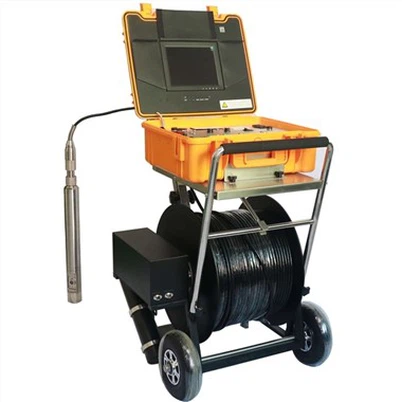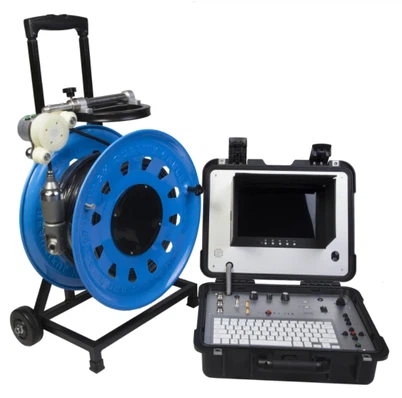

How do I transfer the footage from a sewer camera to a computer or a smartphone?
Leave a message

Transferring footage from a sewer camera to a computer or a smartphone can be an essential process for many professionals in the plumbing and sewer inspection industry. As a supplier of high - quality sewer cameras, I understand the importance of seamless data transfer for our customers. This blog post will guide you through the steps and methods to achieve this effectively.
Understanding Sewer Camera Data Transfer Basics
Before diving into the transfer methods, it's crucial to understand the types of connections and file formats associated with sewer cameras. Most modern sewer cameras store footage in common video file formats such as MP4, AVI, etc. These cameras are equipped with different types of connectors to transfer data, which can include USB, Wi - Fi, or Bluetooth.
Transferring to a Computer
Using a USB Connection
One of the simplest and most reliable ways to transfer footage from a sewer camera to a computer is through a USB connection. Here are the steps:
- First, power off your sewer camera. Locate the USB port on your camera. Some cameras have a built - in detachable storage device, like an SD card, which can also be connected to the computer via an SD card reader.
- Connect the sewer camera to your computer using a compatible USB cable. Make sure the cable is firmly plugged in on both ends. Once connected, power on the sewer camera.
- On your computer, a new storage device will be detected. On Windows systems, open “This PC,” and you will see the camera's storage listed as a removable drive. On Mac systems, the drive will appear on the desktop.
- Double - click on the camera's storage drive to access it. Navigate to the folder where the footage is stored. Usually, cameras have a dedicated “Videos” or “Recordings” folder.
- Select the footage you want to transfer, right - click on it, and choose “Copy.” Then, navigate to the desired location on your computer, right - click in that location, and choose “Paste.” The transfer process should start immediately.
Using Wi - Fi Connection
Some advanced sewer cameras support Wi - Fi connectivity, which allows for wireless data transfer. Here's how to use it:
- Enable the Wi - Fi feature on your sewer camera. This is usually done through a menu on the camera's display screen. The camera will broadcast its own Wi - Fi network.
- On your computer, go to the Wi - Fi settings and select the camera's Wi - Fi network. Enter the password if required.
- Once connected, open a web browser on your computer. Enter the IP address of the camera into the address bar. You can find this information in the camera's user manual.
- The camera's web interface will open. Navigate to the section where the footage is stored. Select the files you want to transfer and click the download button. The files will be saved to your computer.
Transferring to a Smartphone
Using Bluetooth
If your sewer camera supports Bluetooth connectivity, you can transfer footage to your smartphone easily. Here's the procedure:


- Turn on the Bluetooth function on both your sewer camera and your smartphone. On the camera, access the settings menu and enable Bluetooth. On your smartphone, go to the “Settings” app and turn on Bluetooth.
- On your smartphone, search for available Bluetooth devices. Your sewer camera should appear in the list. Select the camera and pair it with your phone. You may need to enter a pairing code if prompted.
- Once paired, open the camera's app on your smartphone (if available). If there is no dedicated app, you can usually access the camera's storage through the Bluetooth settings and select the footage you want to transfer.
- Select the transfer option in the app or settings. The footage will start transferring to your smartphone.
Using Wi - Fi and App
Many sewer cameras come with dedicated mobile apps that support Wi - Fi connectivity. Here's how to use them:
- Download and install the camera's app from the App Store (for iOS devices) or Google Play (for Android devices).
- Enable the Wi - Fi feature on your sewer camera and connect it to your home or office Wi - Fi network.
- Open the app on your smartphone. Log in if required. The app will search for the connected camera. Once found, it will establish a connection.
- In the app, navigate to the section where the footage is stored. You can view the available footage and select the ones you want to transfer to your phone. Tap the download or transfer button, and the files will be saved to your smartphone's storage.
Troubleshooting Common Transfer Issues
Sometimes, you may encounter issues during the transfer process. Here are some common problems and their solutions:
- No device detected: If your computer or smartphone doesn't detect the sewer camera, check the connections. Make sure the USB cable is not damaged, and the camera is properly powered on. For wireless connections, ensure that the Wi - Fi or Bluetooth is enabled and the devices are in range.
- Slow transfer speed: Slow transfer speeds can be caused by a weak Wi - Fi signal, a large file size, or an overloaded computer or smartphone. Try moving closer to the Wi - Fi router if using a wireless connection. You can also close other apps on your device to free up system resources.
- File format compatibility issues: If you have trouble playing the transferred files, it may be due to file format compatibility. You can use video conversion software like VLC or HandBrake to convert the files to a compatible format.
Related Products
In addition to our high - performance sewer cameras, we also offer a range of other inspection cameras, such as the Borehole Water Well Camera, Flexible Cable Industrial Borehole Camera, and Borehole Inspection Camera. These cameras are designed for various applications, including borehole inspections and underwater surveys.
Conclusion
Transferring footage from a sewer camera to a computer or a smartphone is a straightforward process once you understand the different methods and follow the steps carefully. Whether you choose a USB, Wi - Fi, or Bluetooth connection, ensuring a seamless transfer will help you analyze and share the inspection results efficiently.
If you are interested in purchasing high - quality sewer cameras or any of our other inspection products, feel free to contact us for a detailed discussion. We are committed to providing excellent products and services to meet your needs.
References
- Manufacturer's user manuals for sewer cameras.
- General knowledge in the field of inspection camera technology.