
How do I connect a pipe camera to a tablet?
Leave a message

Connecting a pipe camera to a tablet can be a straightforward process if you follow the right steps. As a pipe camera supplier, I've helped numerous customers with this task, and I'm excited to share my knowledge with you. In this blog post, I'll guide you through the process of connecting a pipe camera to a tablet, ensuring that you can start inspecting pipes with ease.
Understanding the Basics
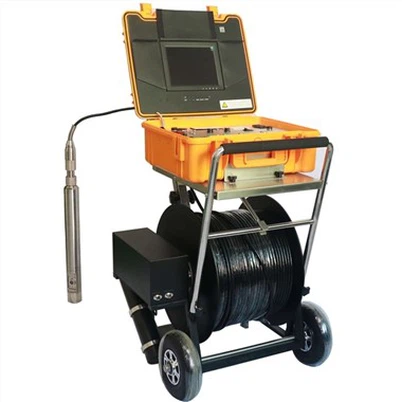
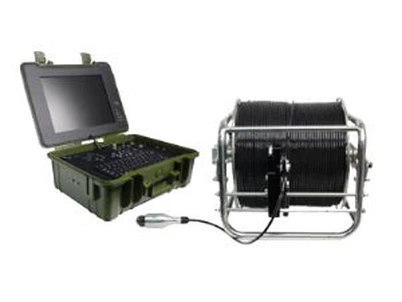
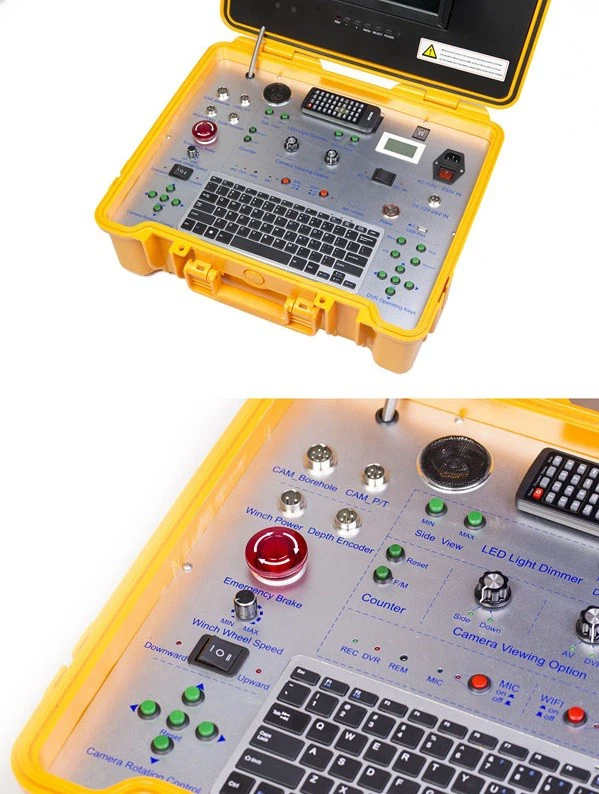
Before we dive into the connection process, it's essential to understand the basic components involved. A pipe camera typically consists of a camera head, a cable, and a control unit. The camera head is designed to be inserted into the pipe, while the cable transmits the video signal from the camera to the control unit. The control unit, in turn, allows you to view and control the camera.
On the other hand, a tablet is a portable device that can receive and display video signals. To connect the pipe camera to the tablet, you'll need to establish a communication link between the control unit and the tablet. This can be done using various methods, depending on the features of your pipe camera and tablet.
Compatibility Check
The first step in connecting a pipe camera to a tablet is to ensure compatibility between the two devices. Not all pipe cameras and tablets are designed to work together, so it's crucial to check the specifications of both devices before attempting a connection.
Most modern pipe cameras support Wi-Fi connectivity, which allows you to connect them to a tablet wirelessly. However, some older models may require a wired connection using an HDMI or USB cable. Make sure your tablet has the necessary ports or supports the wireless protocol used by your pipe camera.
Wireless Connection
If your pipe camera and tablet support Wi-Fi connectivity, a wireless connection is the most convenient option. Here's how you can connect them:
- Power on the Pipe Camera: Turn on the pipe camera and wait for it to boot up. The camera's control unit will typically have a Wi-Fi indicator light that shows when the Wi-Fi is enabled.
- Access the Tablet's Wi-Fi Settings: On your tablet, go to the Wi-Fi settings and search for available networks. You should see the Wi-Fi network name (SSID) of your pipe camera.
- Connect to the Pipe Camera's Wi-Fi Network: Select the pipe camera's Wi-Fi network from the list and enter the password if required. Once connected, your tablet will establish a wireless connection with the pipe camera.
- Launch the Camera App: Download and install the camera app provided by the pipe camera manufacturer on your tablet. Launch the app, and it should automatically detect the connected pipe camera.
- Start Inspecting: Once the app is connected to the pipe camera, you can start viewing the live video feed from the camera. Use the app's controls to adjust the camera settings, such as zoom, focus, and lighting.
Wired Connection
If your pipe camera or tablet does not support Wi-Fi connectivity, you can use a wired connection instead. Here's how you can connect them using an HDMI or USB cable:
- Power on the Pipe Camera: Turn on the pipe camera and wait for it to boot up.
- Connect the Cable: Connect one end of the HDMI or USB cable to the output port of the pipe camera's control unit and the other end to the corresponding input port on your tablet. If your tablet does not have a built-in HDMI or USB port, you may need to use an adapter.
- Select the Input Source: On your tablet, go to the settings and select the input source corresponding to the connected cable. This will display the video feed from the pipe camera on your tablet's screen.
- Start Inspecting: Once the video feed is displayed on your tablet's screen, you can start inspecting the pipes. Use the controls on the pipe camera's control unit to adjust the camera settings.
Troubleshooting
If you encounter any issues while connecting the pipe camera to your tablet, here are some troubleshooting tips:
- Check the Power: Make sure both the pipe camera and the tablet are powered on and have sufficient battery life.
- Verify the Connection: Double-check that the cables are properly connected and that the Wi-Fi network settings are correct.
- Update the Software: Ensure that your pipe camera's control unit and the tablet's operating system are up to date. Software updates can often fix compatibility issues.
- Restart the Devices: Try restarting both the pipe camera and the tablet to refresh the connection.
- Contact Support: If the problem persists, contact the pipe camera manufacturer's support team for further assistance.
Benefits of Using a Tablet with a Pipe Camera
Using a tablet with a pipe camera offers several benefits, including:
- Portability: Tablets are lightweight and easy to carry, allowing you to inspect pipes in various locations without the need for a bulky monitor.
- Convenience: With a tablet, you can view and control the pipe camera from a distance, making it easier to navigate tight spaces and hard-to-reach areas.
- Versatility: Tablets support a wide range of apps that can enhance the functionality of your pipe camera, such as video recording, image capture, and measurement tools.
- Real-Time Sharing: You can share the live video feed from the pipe camera with colleagues or clients in real-time, allowing for remote collaboration and decision-making.
Our Pipe Camera Products
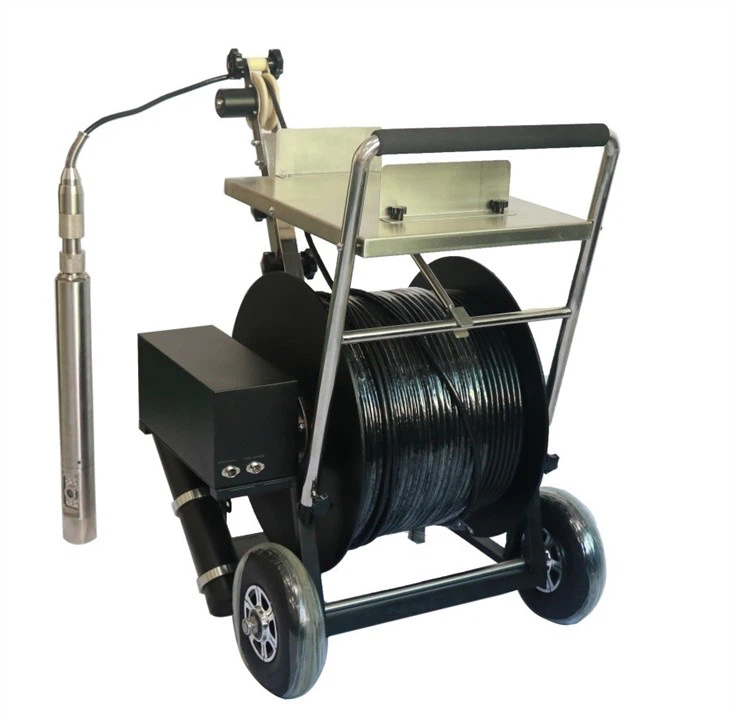
As a pipe camera supplier, we offer a wide range of high-quality pipe cameras that are compatible with tablets. Our products include the Borehole Deep Water Inspection Camera, Factory Borehole Water Well Camera, and Borehole Water Well Camera. These cameras are designed to provide clear and accurate video footage of pipes, wells, and other underground structures.
Conclusion
Connecting a pipe camera to a tablet is a simple process that can greatly enhance your pipe inspection capabilities. By following the steps outlined in this blog post, you can easily establish a connection between your pipe camera and tablet and start inspecting pipes with ease. If you have any questions or need further assistance, please don't hesitate to contact us. We're here to help you find the right pipe camera solution for your needs.
References
- Manufacturer's user manuals for pipe cameras and tablets.
- Online resources and forums for pipe camera users.