
How do I transfer the footage from a sewer camera to a storage device?
Leave a message

Hey there! I'm a supplier of sewer cameras, and I often get asked about how to transfer footage from a sewer camera to a storage device. It's a crucial step, especially when you need to review the inspection results, share them with clients, or keep a record for future reference. So, let's dive right into it!
Understanding Your Sewer Camera System
First things first, every sewer camera system is a bit different. Some come with built - in storage, while others rely on external storage options. Before you start the transfer process, you need to know what kind of camera you're dealing with.
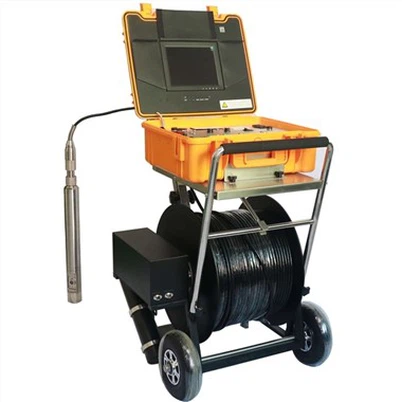
For instance, if you have a high - end Flexible Cable Industrial Borehole Camera, it might have advanced features for easy data transfer. These cameras are designed to be used in various industrial borehole applications, and their data management systems are usually pretty user - friendly.
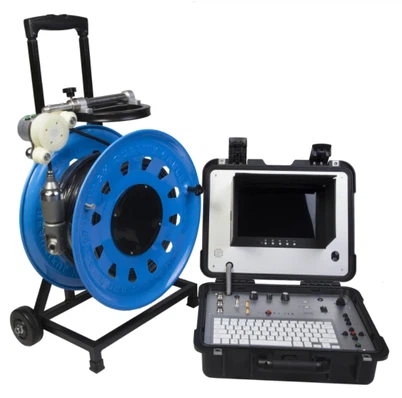
On the other hand, a Borehole Water Well Camera is more specialized for water well inspections. The transfer process might be tailored to the specific needs of that environment, like dealing with potentially wet conditions or limited space.
And then there's the Borehole Inspection Camera, which is used for general borehole inspections. It's important to check the camera's manual to understand its unique capabilities and limitations when it comes to transferring footage.
Transfer Methods
USB Transfer
One of the most common ways to transfer footage is through a USB connection. Most modern sewer cameras have a USB port. Here's how you can do it:
- First, make sure your storage device (like a USB flash drive or an external hard drive) is formatted correctly. Most cameras work well with FAT32 or NTFS formats.
- Turn off the sewer camera and your storage device.
- Connect the USB cable from the camera to the storage device.
- Power on the camera. It should detect the storage device automatically in most cases.
- Navigate through the camera's menu to find the option for data transfer. This might be labeled as "Export", "Transfer", or something similar.
- Select the footage you want to transfer. You can choose individual files or transfer everything at once.
- Start the transfer process. The camera will copy the files to the storage device. You can monitor the progress on the camera's screen.
- Once the transfer is complete, safely eject the storage device from the camera to avoid data corruption.
Wireless Transfer
Wireless transfer is becoming more popular, especially for cameras used in large - scale projects. It allows you to transfer footage without having to physically connect cables.
- Make sure your sewer camera supports wireless transfer. Some cameras use Wi - Fi, while others might use Bluetooth.
- Connect your storage device (if it's a smartphone or a tablet) to the same Wi - Fi network as the camera. If it's Bluetooth, pair the two devices.
- On the camera, enable the wireless transfer function. You'll usually find this in the settings menu.
- On your storage device, open the appropriate app that came with the camera or a file - sharing app.
- Scan for available devices. The camera should show up in the list.
- Select the camera and initiate the connection.
- Once connected, you can browse the camera's storage and select the footage you want to transfer.
- Start the transfer, and wait for it to finish. Keep in mind that the transfer speed might be affected by the strength of the wireless signal.
Dealing with Common Issues
Sometimes, things don't go as smoothly as we'd like. Here are some common issues and how to fix them:
Storage Device Not Detected
- Check the connection: Make sure the USB cable is properly plugged in or the wireless connection is set up correctly.
- Format the device: As mentioned earlier, the storage device might need to be formatted in a compatible format.
- Check for power issues: If the storage device is powered by the camera through USB, make sure the camera has enough power.
Transfer Failure
- Insufficient storage space: Check if there's enough free space on the storage device. Delete some unnecessary files if needed.
- Data corruption: If the footage is corrupted on the camera, you might not be able to transfer it. Try to recover the data using data recovery software or contact the camera's manufacturer for support.
- Software glitches: Sometimes, the camera's software might have a bug. Try restarting the camera and the storage device and then attempt the transfer again.
Best Practices for Transferring Footage
- Backup your data: Once you've transferred the footage to the storage device, make a backup of it on another device. This ensures that you don't lose the important inspection data.
- Organize your files: Create folders on the storage device to keep your footage organized. You can name the folders by project name, date, or location.
- Keep the camera's firmware up - to - date: Manufacturers often release firmware updates that can improve the camera's performance, including the data transfer process.
Conclusion
Transferring footage from a sewer camera to a storage device is an important part of using these cameras effectively. Whether you're using a Flexible Cable Industrial Borehole Camera, a Borehole Water Well Camera, or a Borehole Inspection Camera, following the right steps and being prepared to deal with common issues will make the process smooth.
If you're in the market for a sewer camera or have any questions about transferring footage, feel free to reach out. We're here to help you make the most of your sewer camera system.


References
- Manufacturer's manuals for sewer cameras
- Online resources on data transfer and storage management