
Can I connect a sewer camera to my computer?
Leave a message

Can I Connect a Sewer Camera to My Computer?
As a sewer camera supplier, I often get asked whether it's possible to connect a sewer camera to a computer. The short answer is yes, and in this blog post, I'll delve into the details of how this connection works, the benefits it offers, and the steps you need to take to achieve it.
Why Connect a Sewer Camera to a Computer?
Before we jump into the technicalities, let's first understand why someone would want to connect a sewer camera to a computer. There are several compelling reasons for this:
- Enhanced Viewing and Analysis: Computers typically have larger and higher - resolution screens compared to the small monitors that often come with sewer cameras. This allows for a more detailed view of the sewer pipes, making it easier to detect cracks, blockages, or other issues.
- Data Storage and Sharing: Connecting the camera to a computer enables you to save the recorded footage for future reference. You can also easily share the data with colleagues, clients, or experts for further analysis.
- Advanced Software Tools: Many computers come with or can be installed with software that offers advanced features for image and video processing. These tools can help in measuring distances, annotating the footage, and generating reports.
Compatibility and Requirements
To connect a sewer camera to a computer, you need to ensure that both the camera and the computer are compatible. Here are the key requirements:
- Video Output Interface: The sewer camera must have a video output interface that can be connected to the computer. Common interfaces include HDMI, USB, and VGA.
- Computer Input Port: Your computer should have a corresponding input port that matches the camera's output interface. Most modern computers come with HDMI and USB ports, which are widely used for connecting external devices.
- Driver Installation: In some cases, you may need to install drivers on your computer to ensure that it can recognize the sewer camera. These drivers are usually provided by the camera manufacturer and can be downloaded from their official website.
Connection Methods
There are several ways to connect a sewer camera to a computer, depending on the available interfaces. Here are the most common methods:
- HDMI Connection: If your sewer camera has an HDMI output and your computer has an HDMI input port, this is the simplest and most straightforward method. Simply connect one end of the HDMI cable to the camera's HDMI output and the other end to the computer's HDMI input. Once connected, you may need to select the appropriate input source on your computer to display the camera's footage.
- USB Connection: Many sewer cameras come with a USB output, which can be connected directly to the computer's USB port. This method is often used when the camera is designed to be used with a computer and comes with its own software. After connecting the camera to the USB port, the computer should automatically detect the device. If not, you may need to install the necessary drivers.
- VGA Connection: Although less common in modern devices, some older sewer cameras and computers may still use VGA interfaces. To connect a camera with a VGA output to a computer, you'll need a VGA cable. Connect one end of the cable to the camera's VGA output and the other end to the computer's VGA input. Similar to the HDMI connection, you may need to select the correct input source on the computer.
Step - by - Step Guide
Here's a general step - by - step guide to connecting a sewer camera to a computer:
- Check the Interfaces: Identify the video output interface on the sewer camera and the corresponding input port on the computer.
- Gather the Necessary Cables: Depending on the interfaces, gather the appropriate cables (HDMI, USB, or VGA).
- Power Off the Devices: Before making any connections, turn off both the sewer camera and the computer to prevent any electrical damage.
- Make the Connection: Connect the cable from the camera's output interface to the computer's input port.
- Power On the Devices: Turn on the sewer camera first and then the computer.
- Install Drivers (if necessary): If the computer does not recognize the camera, insert the driver CD that came with the camera or download the drivers from the manufacturer's website and follow the installation instructions.
- Select the Input Source: On the computer, open the display settings or media player software and select the appropriate input source to display the camera's footage.
Our Product Range
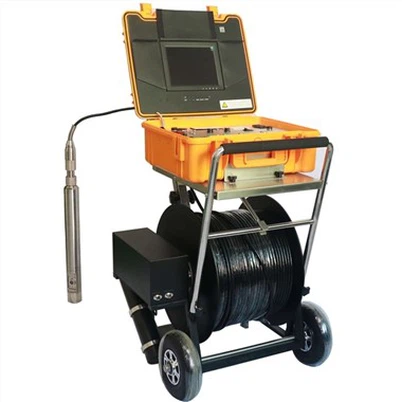
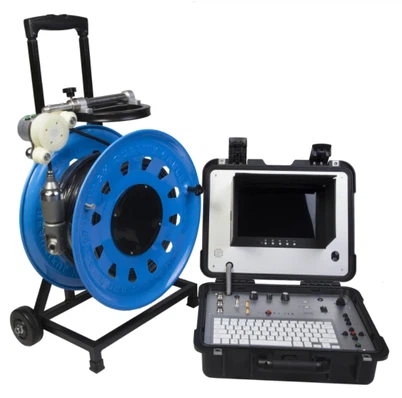
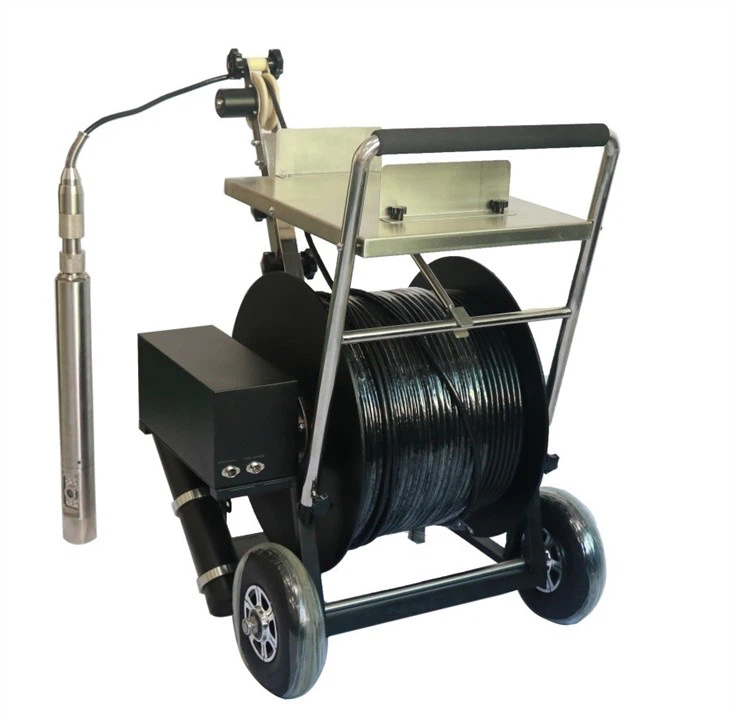
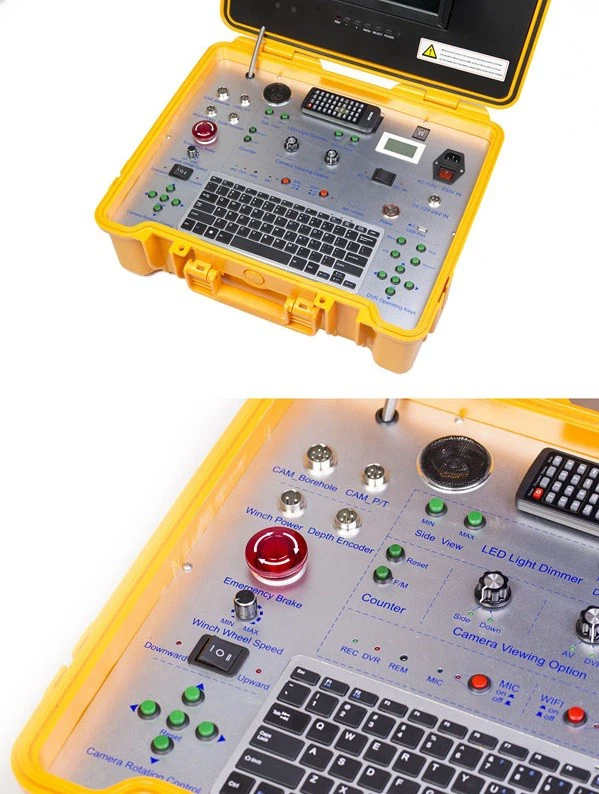
At our company, we offer a wide range of sewer cameras that are designed to be easily connected to computers. In addition to sewer cameras, we also have other related products such as the Factory Borehole Water Well Camera, the Borehole Deep Water Inspection Camera, and the Underwater dual view borescope inspection camera. These cameras are equipped with high - quality lenses and advanced imaging technology to provide clear and accurate footage.
Contact Us for Procurement
If you're interested in purchasing a sewer camera or any of our other products, we'd love to hear from you. Our team of experts can provide you with detailed information about our products, help you choose the right camera for your needs, and answer any questions you may have. Whether you're a professional plumber, a contractor, or a DIY enthusiast, we have the right solution for you.
References
- "Handbook of Sewer Inspection and Rehabilitation". CRC Press.
- Manufacturer's manuals for sewer cameras and related equipment.